
 Tagging and tracking can be an important way to segment and understand user behavior on your website. Google Analytics offers lots of ways to do this, but finding out how to do it isn’t always so obvious. Knowing a little bit more about your visitors allows you to make better more informed decisions and ultimately provide a better site to your visitors. There are multiple ways that you can segment, track, and tag site visitors that are not so obvious “out of the box”.
1. Tagging links to know what media delivered them
There are some custom variables that you can set on your links to provide additional tracking capabilities in Google Analytics. ROI Revolution has created a great Destination URL Builder that will help you quickly turn your URL into a fully tagged and ready to go URL that will provide more meaning about your visitors in Google Analytics.
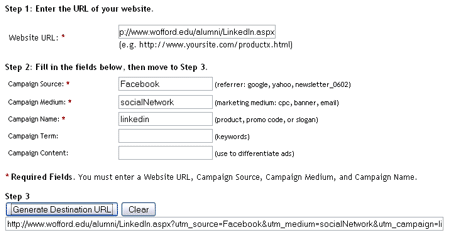
So in the picture below I created a trackable URL that sends people to our LinkedIn page from Facebook. So a simple URL goes through the following transformation:
- https://www.wofford.edu/alumni/LinkedIn.aspx
- https://www.wofford.edu/alumni/LinkedIn.aspx?utm_source=Facebook&utm_medium=socialNetwork&utm_campaign=linkedin
Your end user will never see all this because all they do is click on the link and go to the page, but this provides much more information to us about how this user found out about this page. This is a great tactic for understanding visitors who come from email marketing, snail mail (through a shortened URL and 301 redirector of which I’ll discuss in more detail soon), and other off site links coming to your site.
Example with this LinkedIn campaign I might have additional sources of email marketing, campus posters, snail mail postcards, newsletters, and social networks. Then because each have a specific tracking parameter tagged to the URL I can then see which campaign was the most beneficial.
2. Tracking downloads and Off Site Links
Sometimes you need to track things besides pages on your site. For example you would like to track a PDF downloaded on your site. Maybe something important like your college viewbook?

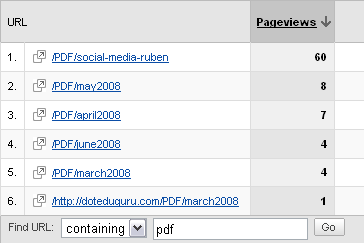
The trackPageview variable can really include any directory or definition that you choose. To give an example I’ve been tracking PDF downloads on this blog for months now. I tag all PDF’s by claiming they are in a PDF directory so it’s easy to search for in my analytics and then give a meaningful name for them to show up in the reports. As you can see by this graphic I haven’t had a whole lot of downloads of Wofford’s Monthly Web Reports, but looks like Director of Web CommunicationRuben’s Social Media presentation was in a little higher demand.
Keep in mind that you can use this onClick call to track a lot more than pdf downloads. If you want to track how many clicks to an external link (say you have an intranet that is on a different domain that you want to track traffic too or have an external campus bookstore) then you can also use this variable. Same for any sort of documents including videos. Just add this onClick javascript to the link to the video file of your choice and it’s now in Google Analytics!
Note: As I mentioned make sure that you keep it monitored in a friendly organized way. Maybe for videos you keep them all in a “streaming-media” directory or external links in a “off-site” directory to help make them easy to find.
3. Segmenting Audience
Now let me just confess up front that I have yet to actually use this functionality so testing is in order, but it looks fairly straightforward. Take a look at the coding examples below and tell me what looks familiar in the three?


All three set a variable of “prospective student”. If you are wanting to segment your visitor type to better understand what a specific audience type does on your site this variable can come in very handy. With the link code you simply send them to a page and assume that anyone who visits that page is going to be in the segmented audience. This is kind of a guess as you don’t always know what segment unless you are sending them from something like an internal portal where they have already identified themself.
I think the later two examples probably work a little bit better as you can drive traffic to a landing page through off site means like email marketing, snail mail or something else and then tag that user through either the onLoad call in the body tag or running the javascript function anywhere on the page. You can input this variable in the middle of your analytics code, but most likely that is in an include file that is part of your template and you would have to setup a special page for every landing page like this that you created and probably not worth the time or the effort. So just add the javascript call to the end of your content.
Conclusion
So there you have it three easy ways to make your analytics data that much more valuable to you. Of course if this is your first time with Google Analytics these tips are probably not that useful to you without some basic Google Analytics setup tips. I’ve also written more about Google Analytics so feel free to explore the Analytics Category of the blog or search Google Analytics.
Kate & I tried setting up tracking on Blah, but it never worked.
I’ll have to give it another try and see if anything’s changed.
Great post, Kyle. I especially love the trackable link from social media. So important, yet so overlooked by many (including me!). I always just thought about tracking from social media to our website, but not between social media. This is perfect! I’m going to add this to my ‘to-do’ list right now!
This is a fan-freak’n-tastic post. will definitely put to good use.
Thanks for the tips!
Great post.
We use the _trackPageview on our home page to quickly determine which links are most popular (even clicking internally). Not all of our pages have analytics on them yet so this provided a great way to see which links on the home page were most popular. We set them up in the /outgoing/ directory in GA and have used these statistics quite a few times already to prove to some folks that we can’t take that link off the home page.
@Wayne - I’m really surprised you don’t have Google Analytics installed. What are you using to track your blog? Clicky?
@Shelby - Glad to offer some tips that are useful. Have to keep on top of my analytics stuff now that this new blog has popped up with excellent analytics advice.
@Moshe - Don’t know if I’ve ever gotten a “fan-freak’n-tastic” comment before, but I’ll take it!
@Todd - This is a great example of how to use the trackPageview function! I’ll have to remember this for the upcoming presentations. Your site is templated right? Just drop the analytics tracking code in a footer include or something and start tracking. Once you have missed a day of tracking it’s too late to go back.
Hi, Great article.
I am interested in using GA to track completed registrations for a newsletter. Is it possible to insert GA code on a third party site and use it as a goal.
Ideally, this would be on submit of the form.
I know you could track outbound.
Ex 200 clicks on “sign up now” link, but maybe you only have 150 completed forms.
Thanks,
Bryan
@Founderunfortunately not. The new stuff I am rolling out is templated and has the tracking in it. But all the old stuff is just a hodge podge of stuff, some of it with no mention of the university at all. Trying to fix all that.
The article is great and it is very informative and more over it has good modes of getting links to the site.
@Bryan - There isn’t really an easy way to track traffic on an external site. The best option I would recommend is to send them back to your site after completing the form on another site and do it using a destination URL with tracking parameters. Is there a way that you can automatically redirect them back to your site after completing the form?
The only problem with #1 is you now have multiple URLs showing the same content and now you have a duplicate content issue. Probably not an issue since everyone nofollows everything now anyway.
And you don’t even have to tag stuff if you use the new GA.js code. It tracks outbound clicks as well as PDF clicks for you.
One of the things I use event tagging for is when we have an image and a text link on a page that both point to the same destination. This lets you know which gets clicked more often.
Thanks for the article Founder- been wanting to do this for a while now and but finally implemented tracking off-site links over at https://hummingbirdmusic.net - a friends site.
Because she created all the PayPal buttons w/o setting a landing page for finished or canceled transactions, this gives us at least some tracking…and is probably superior in that it tracks people who click through even if they don’t “cancel” and land back at a target page.
Thoughts on the best way to track conversions with PayPal buttons?
Justin,
Paypal is really tricky for the reasons that you mentioned. Take a look at this series of four posts on the Analytics Talk Blog.
I’ve yet to set it up so I’m not 100% sure if it would work but I think the way I would tackle it is to be able to pass the data that you want to track back to your site through a Post or a Get when PayPal does it’s redirect back to your site. Then have a “Thank You” type landing page that has the additional tracking parameters mentioned in the article. Then if you set up a goal with the funnel really only being one page that is the Thank You landing page people only get to from the paypal redirect you should be able to track all this in GA. Hope that helps.
Thanks Kyle,
Using the e-commerce tools for non-e-commerce is a really cool idea.
Unfortunately I can’t make use of the transactional data because the users aren’t coming back to the site. I know it’s possible to send whatever data through to PayPal - but since they aren’t coming back there’s really no point. If I get a chance to get my hands on her PayPal account - I’ll probably make new buttons and configure them to direct the users to a receipt page.
BTW, I did have get analytics: an hour a day - on the company dime - but lol, it’s rough finding that hour a day!
Hi,
I have a question about tracking web sites. I came across a person who can add or drop the websites from google search based on whether I searched for him or not. Do you think it is possible? Can we add Google Analytics tracking code to public profiles like Facebook or Plaxo. I was able to add tracking code in Myspace but it did not work. Any help of yours in understanding this topic will be appreciated.
Thanks
I always just thought about tracking from social media to our website, but not between social media. Not all of our pages have analytic on them yet so this provided a great way to see which links on the home page were most popular. We set them up in the /outgoing/ directory in GA and have used these statistics quite a few times already to prove to some folks that we can’t take that link off the home page.Unfortunately I can’t make use of the transactional data because the users aren’t coming back to the site. I know it’s possible to send whatever data through to PayPal - but since they aren’t coming back there’s really no point
Justin,
How many variables can you pass on the Segmenting Audience scripts? I see that you added only two ‘prospective students’, I would like to be able to add more than that.
I have been using all of the tools mentioned above and I am really getting some added value from GA. Great post for people who aren’t maximizing their GA value.
really great sites, thank you,
Love your blog, it very instructive for me. I used google translator
That is great information. Im glad that I can relate to this sorta stuff. I do use a cell phone tracker, I know if you have any cell phone tracking software problems you can just use this Mobile phone tracker