
Since coming back from Google Analytics training last week finding the time to setup all the wonderful new tricks that I learned has presented a challenge. This post is a nice little introduction to some of the basics that I learned last week. This is part one in what will be a continuing series about Google Analytics
Installing the Code
Installing the code is the easy part. I would definitely recommend going with the new ga.js at this point. If you are still on the old urchin.js then find some time to swap everything over.
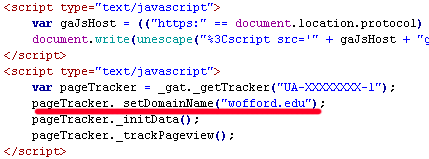
The above code should look fairly similar to your account. The one line that I’ve underlined and added is to set your domain name. What this allows you to do is to track sub-domain traffic and split it out. This will be discussed in more detail later.
Setting up a Profile
When setting up a profile make sure to fill out all the options. Specifically make sure that you fill out the Default Page option and the Site Search information.
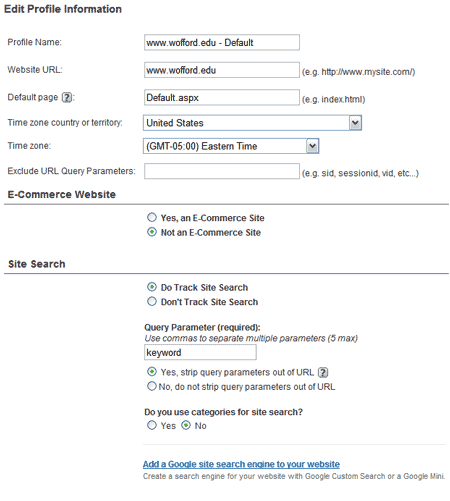
The default page setting will help you get rid of redundancy in the system. There is nothing more annoying than seeing data for something like www.wofford.edu/ along with www.wofford.edu/default.aspx when we know that they are the same page. Go ahead and save yourself the trouble in the long run by setting this up now. Secondly, the Site Search provides valuable information about what individuals are searching for on your site. You don’t need Google search for your internal site, turning this option on will work with any internal search that you use. The Query Parameter is simply the value that you return in your search string. For example on wofford.edu if you run a search for “apply” then the returning URL would look like this (https://www.wofford.edu/search/searchSiteResults.aspx?keyword=apply). As you can see the search parameter is keyword. You might as well strip query parameters out of the URL because this will help clean your page and you are storing these results in the site search section now.
Setup Multiple Profiles
Google Analytics allows you to setup a max of 100 website profiles in an account. Why not take advantage of this? One of the tips I mentioned last week was to setup multiple profiles. So what does that mean?
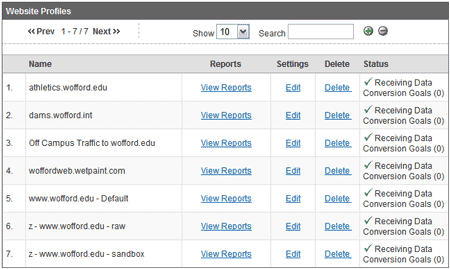
First I would recommend setting up a minimum of three profiles.
- Default Profile
- Raw Data Profile
- Sandbox Profile
The Sandbox is where you can test and play with new filters (we’ll get to some of those in a second) among other things. The Default is where your main data is going to be saved and the Raw Data is the profile that you keep that doesn’t have any filters simply the raw data, just in case something bad happens. Two of the obvious examples of additional profiles in the picture above are athletics.wofford.edu and Off Campus Traffic. I can pull reports specifically about this sort of traffic or pull from the Default data which includes everything. You will also notice that I stashed a z at the front of a few of the profiles so they get filtered to the bottom. This is just another handy tip to help keep your profile list clean and organized.
Some Basic Filters
-
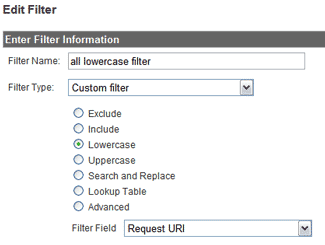 All Lowercase Filter: The first filter is the lowercase filter. This filter is one that would be wise to apply to EVERY report. I know I said the Raw Data profile doesn’t have any filters, but this filter wouldn’t hurt to be applied to it. The lowercase filter removes duplicates from the system that you might have by making all characters in your reports lowercase. The best example of this would be wofford.edu/default.aspx and wofford.edu/Default.aspxshowing up as two seperate entries when they are obviously the same page.
For more information about this filter I highly recommend reading Some Basics about Lowercase Filters over at the ROI Revolution blog. -
Exclude all Traffic from an IP Address: This filter sounds pretty easy, but the first reaction most people will have is that excluding one address isn’t what I want to do. I want to exclude all the IP addresses from a location, how do I do that? Google anticipated this and created a nice little page that will provide you with the code to put for this request. This Google Analytics Help Center will help you create the .
The perfect example for this filter is to track a college’s website traffic from off campus. - Tracking Sub Domain Traffic: As I showed in the profiles above we have athletics.wofford.edu split out in a separate profile so that we can look at data just to that sub domain. To do this requires two extra filters. One filter is applied to the sub domain profile while the other is applied to the default profile. Instead of trying to explain all this in detail Justin Cutroni over at Analytics Talk put together a post on Tracking Sub Domains with Google Analytics back in November that I followed then and have been enjoying the results since.
Final Thoughts
Hopefully that is enough to get you more effectively using your Google Analytics account and starting to clean up your data. Just a few days ago on the Official Google Analytics Blog it was announced that Benchmarking Data Now Live! This should add a whole new level to web analytics and simply another reason to jump on board this wonderful service. I will admit though that I’m a little confused about exactly what category College websites fit into? Maybe non-profits?
There are lots of great blogs out there on Google Analytics a few that I regularly read and would recommend include:
- The Official Google Analytics Blog- this blog is surprising updated quite regularly and every gem posted is must know material.
- Analytics Talk- This blog is only posted to when something really helpful or important comes out so it’s something to add to the feed-reader for those really important tips when they come out.
- Unofficial Google Analytics Blog- This blog run is run by the folks over their at ROI Revolution. After meeting them last week they definitely know what they are talking about and their blog is a great starting point for a wealth of information.
- Occam’s Razor- This blog by Google’s very own Avinash Kaushik is a must add to the feed-reader. Avinash wrote “Web Analytics: An Hour A Day” which is a must read book in Analytics circles. I’ll admit I have yet to read it, but it’s the first things on my to do list this summer. Read any post on his blog and you will feel like a smarter individual.
- Web Analytics World- Although this blog isn’t specifically about Google Analytics the author, Manoj Jasra, does a great job of regularly summarizing some of the industry news in the analytics world.
Great post, and handy list of resources referenced.
I’d add MediaPost’s Metrics Insider blog to the list. It tackles online metrics more broadly, though some posts are about Google Analytics. Keeps you thinking ahead.
Here is one of the better posts I’ve seen recently about online “engagement” - the new black in metrics and analytics, from that blog: https://blogs.mediapost.com/metrics_insider/?p=45
Rob, Thanks for the share. I read the post. Good thought provoking stuff and I’ve added it to the feed-reader.
This is a great post! Thanks so much for sharing, this will for sure be a great resource to refer new analytics users to!!
Regarding your sentence, “I would definitely recommend going with the new ga.js at this point. If you are still on the old urchin.js then find some time to swap everything over” -
I’m working with a consultant to help us get setup with Urchin and Google Analytics and he has me using urchin.js. I told him today about your blog post & suggestion and asked if he could convince me why I shouldn’t follow your advice instead, and here’s what he said:
ga.js is still in Beta according to the technical people at Google, and they’re not spending a whole lot of time on it right now. He also said the e-commerce piece doesn’t work 50% or more of the time, the visitor IDs are corrupted and the event tracking is very buggy. He’s advising me to stick with urchin.js for now.
Rachel,
Hum… how do I say this nicely. Your consultant is simply wrong. The training last week was with three of the leading Google Analytics experts in the world! Check out the Seminars for Success page. The training was with Michael, Shawn, and Timothy. This page is on Google’s site and those ROI Revolution are Google Analytics Authorized Consultants. Is your guy an authorized consultant?
Also Google will not be supporting the old Urchin.js script moving forward and all new functionality will be built around ga.js.
From personal experience I’ve got five sites running the new ga.js script and do not run into any issues with it. The guys at ROI Revolution runs hundreds of AdWords campaigns and they use the ga.js script.
Nice information to help me out setting up Google Analytics. I am off to filter out my IP from recording stats.
Great post…
Just one thing:
wofford.edu/default.aspx and wofford.edu/Default.aspx aren’t the same page in the eyes of the search engines. If you see visitors hitting both there might be an SEO problem.
wofford.edu/default.php and wofford.edu/Default.php won’t load the same page on a non-Microsoft server.
Example:
https://www.google.com/index.html
https://www.google.com/Index.html
The Internet (including search engines) is generally case sensitive.
Great post ! thanks.
Where is the “Google Analytics : Some Expert Setup Tips” ?
1. Default Profile
2. Raw Data Profile
3. Sandbox Profile
That a nice idea, I will try it out! I use only default profile before.
This is great, but do any other web analytics have any weight? Everyone concentrates on Google, but what about Bing and Yahoo. I use Site Explorer and the differences in the results between that and Google are significant. Should I only really concentrate on Google?
Google analytics have really helped bloggers to study the pattern of visitors and thus increasing the number of visitors to their blog.
Praises, shown up. I must say that I enjoyed glancing over this piece. I observed it today morning and soon got that it was newsworthy, so it urged me to make a note. I have a impression viewers will in all likelihood concur your view about this matter.